Windows/PC Tips From Robelle
New Policy on MS Windows Life Span
A new policy from Microsoft seems to have taken Win2k off death row, according to this article at The Register: The intent now is that the major Microsoft products will now have a "mainstream" supported life of five years, while for business versions it'll then be possible to buy two years "extended" support. Specifically this means Windows 2000 Pro gets a full five year lifespan, whereas until the beginning of this week it was due to go into the red zone on 31st March 2003. WinXP Pro will now get mainstream support until the end of 2006.
Many sites are still working out the implications of Microsoft's new Upgrade Licensing fees, where you pay for upgrades in advance by subscription.
Visual Basic and HP 3000 Examples
Remote Procedure Calls allow you to run subroutines across a a network. This example from Transformix shows how to issue TurboIMAGE calls from a Visual Basic program across an network.Microsoft Volume Licensing
From The Register newsletter: Businesses using Microsoft's volume licensing programs may think that they are buying OS licenses, but they aren't! Microsoft expects them to also purchase a new OS license for each new machine, even if they immediately overwrite it under the volume licensing program. Click the link to find out why.
Win2k: Death is Near
According to this report on The Register web site (and confirmed on other news sites), it will get increasingly harder to buy a PC with Windows 2000 installed, with no more after 9 months.
Robelle Tech: Export to MS SQL Server
In our Robelle Tech column for July, we discuss techniques for transforming TurboIMAGE data for Microsoft SQL Server.
How About a Quiet PC?
Read this column in The Register about firms that are trying to build quiet PCs.
Understanding Raid Drives
Since you can now get a raid configuration for your desktop PC for less than $2000, with error-correcting memory as well, this is a good time to ensure that you are up-to-date on the technology of redundant disk drives. (the article is from the Ars Technica news site).
Running MS Office on LINUX?
From The Register web site:There's been a lot of talk in the tech press lately about whether CodeWeavers' Crossover Office for Linux will draw Windows users. The theory here is that a fair number of home users and a vast lot of businesses naturally despise Windows, but can't give it up because they adore MS Office. Home computer users may have learned it in school and be habituated to it, and they may take their work home now and then. If the uni or the office uses MSO, they'll obviously need it on their PCs.
For businesses, the savings from an open-source OS have got to be tantalizing; but the learning curve on a new office suite is also a productivity curve -- and that, obviously, costs money.
The Economist: A Lemon Law for Software?
Interesting opinion piece about software defects: If Microsoft made cars instead of computer programs, product-liability suits might by now have driven it out of business.
Where are the Win2k USB Drivers?
One of the major deficiencies of Windows 2000 is that if I connect my USB Scanner or USB Flashcard Reader, I immediately see the Blue Screen of Death. According to The Register, leaked Win2000, Beta RC2, USB 2.0 drivers drivers appeared on the web in January, 2002 and Microsoft said that the official drivers would be released "soon". Now in April 2002, the beta drivers have been pulled from the web, because Microsoft has filed a complaint that contends that these web sites are in violation of the Digital Millennium Copyright Act.
Desktop Alternatives:
Linux Desktop Apps: The Kompany.com
Shawn Gordon of HP 3000 fame now works at a Linux software company that makes desktop applications such as personal financial system, database, flowcharting, development studio, web tools, etc.
Quick Access to Web Address
If you wish to go to web site, use the Run dialog box of the Start menu and enter the URL (i.e., web address). For example, to go to Robelle's web site, press Start, then click on Run, and type www.robelle.com - there is no need to enter http://. This works most of the time, unless your web address is only xxxxx.com. In that case, Windows thinks you want to execute the xxxxx program.
Hidden File Extensions
A number of viruses (virii?) masquerade as normal files by adding an extra, super-hidden file extension to the filename of an e-mail attachment. For example, the AnnaKournikova virus that recently made the rounds had an attachment named "AnnaKournikova.jpg.vbs", but because of Windows' habit of always hiding certain file extensions, seemed to be named "AnnaKournikova.jpg", a seemingly-innocent graphic file. The vbs extension is hidden, even when you have instructed Windows Explorer to show all filename extensions.A free Windows utility called X-Setup gives you full control over showing filename extensions for the super-hidden types. The utility is available at http://www.xteq.com/products/xset/index.html on the web. This tip courtesy of the very useful Woody's Office Watch e-newsletter, available by sending e-mail to wow@wopr.com .
Zooming
Some applications have a feature to control the display magnification (zoom) size. That's the case of Internet Explorer (Text Size command of the View menu) or applications of the Microsoft Office suite (e.g Microsoft Word: Zoom command of the View menu, and Zoom box on the Standard toolbar). If you have an intelligent mouse with a wheel, you can quickly change the magnification value by holding the CTRL key while "spinning" the wheel.
Closing All Your Files
Gerard Kirwin of Mercantile Mutual Australia suggests the following tip:If you run a Microsoft app that allows multiple windows to be open such as Word, Excel, and you want to close all your open windows within the app, hold the Shift key before clicking File on the menu bar. This will change the Close option to Close All - just click on it gerard.kirwan@mercantilemutual.com.au

Drag-and-Drop File Open
Windows offers a way to quickly open a file from an application. Assuming you can see the file and the application, you can use one of the following methods.Method 1: Drop on Desktop Icon
In this situation, let's assume the Qedit shortcut icon appears on the desktop.
- Click on the file you want to open. You would typically use Windows Explorer to locate the file.
- Drag it over to the Qedit shortcut icon. The pointer should change to an arrow with a small plus sign enclosed in a square.
- As the pointer hovers above the icon, the icon is dimmed. At that point, drop the file on the icon i.e. release the mouse button
- This operation automatically launches Qedit and opens the file.
If Qedit is already running and the application window is visible, do:
- Click on the file you want to open. You would typically use Windows Explorer to locate the file.
- Drag it over to the Qedit application window. The pointer should change to a dimmed outlined square with a small plus sign enclosed in a square.
- At that point, drop the file on the Qedit window i.e. release the mouse button.
- Qedit opens the file automatically.
If Qedit is running but its application window is not immediately visible, it might have been minimized. It should appear as a button on the Windows taskbar. In that case, you should:
- Click on the file you want to open. You would typically use Windows Explorer to locate the file.
- Drag it over to the Qedit button on the Windows taskbar. The pointer should change to a dimmed document icon.
- Leave the pointer over the button for a few seconds, Windows should restore the application window.
- Move the pointer to the application window.
- At that point, drop the file i.e. release the mouse button.
- Qedit opens the file automatically.
Startup Trick
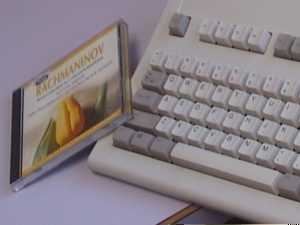
Sometimes when you logon to Windows you don't want to run all your Startup items.
For a faster Startup, keep the Shift key pressed down, from the time you
enter your Windows password until the hard drive stop chattering. Because
this can take some time depending how slow your PC is, you can put something
on the Shift key to keep it pressed down.
Little Known Windows Tricks
Here are some helpful uses of right-click and shortcuts:
In Windows Explorer, shift + right-click on selected file:
Opens the context menu that includes "Open With", which allows you to open
the file with a program different than the default association.
Add a shortcut to the Windows\SendTo directory:
This will add that shortcut to the SendTo list in Explorer's right-click
context menu. If the shortcut points to a program, this is a quick way to
opening a file with a particular program (e.g. put a shortcut to Qedit for
Windows there!). If the shortcut points to a directory, it will move/copy
the file to that directory (copy if on a different drive, move if on the
same drive).
Add a shortcut key to a program's shortcut:
Add a shortcut key via the Program's shortcut properties, which will
- start the program if it is not running
- switch to that program if it is running already
For example, assign F11 to the Qedit for Windows shortcut, then Qwin is
literally a keystroke away!
alt-PrintScrn:
Copy the image of the current window to the clipboard. You can paste this
image into WordPad, which is an easy to to gather information for technical
support.
right-click My Computer, Properties:
Same as Start - Settings - Control Panel - System
right-click Desktop, Properties:
Same as Start - Settings - Control Panel - Display
right-click Network Neighborhood, Properties:
Same as Start - Settings - Control Panel - Network
The Windows Key On Your Keyboard
The Windows key appears on most keyboards nowadays. The basic use is to display the Start menu but, combined with other keys, it can do a lot more. Here are some tips from Francois Desrochers of Robelle (assume that "+" means the Windows key):+e : opens Windows Explorer
+f : opens the Find:File dialog box of Windows Explorer
+u : opens the utilities manager (not working on my NT 4.0 PC)
+m : minimizes all open windows
shift+m : opens all minimized windows
+d : minimizes all open windows and activates the Desktop (not working on my NT 4.0 PC)
+r : opens the Run dialog box
+tab : allows you to select an application from the Windows Taskbar using the arrow keys
+break : displays the System Properties dialog box
+F1 : opens Windows Help
ctrl+f : opens fhe Find:Computer dialog box